Android Install Instructions
Installing Android Apps From GitHub
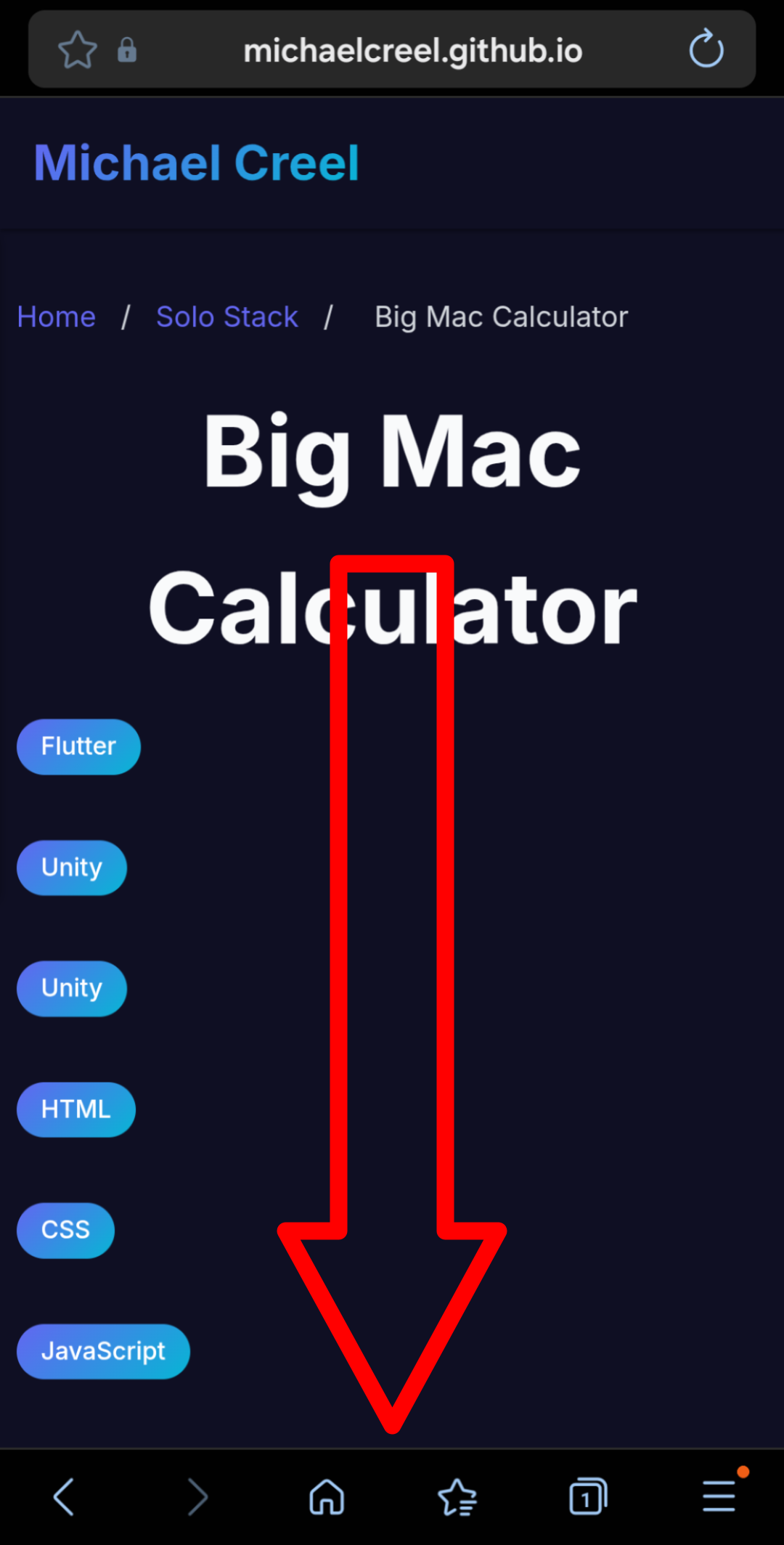
Step 1: Open the project page
Open the project page on my website and scroll down. My app 'Big Mac Calculator' is used as an example download on this page.
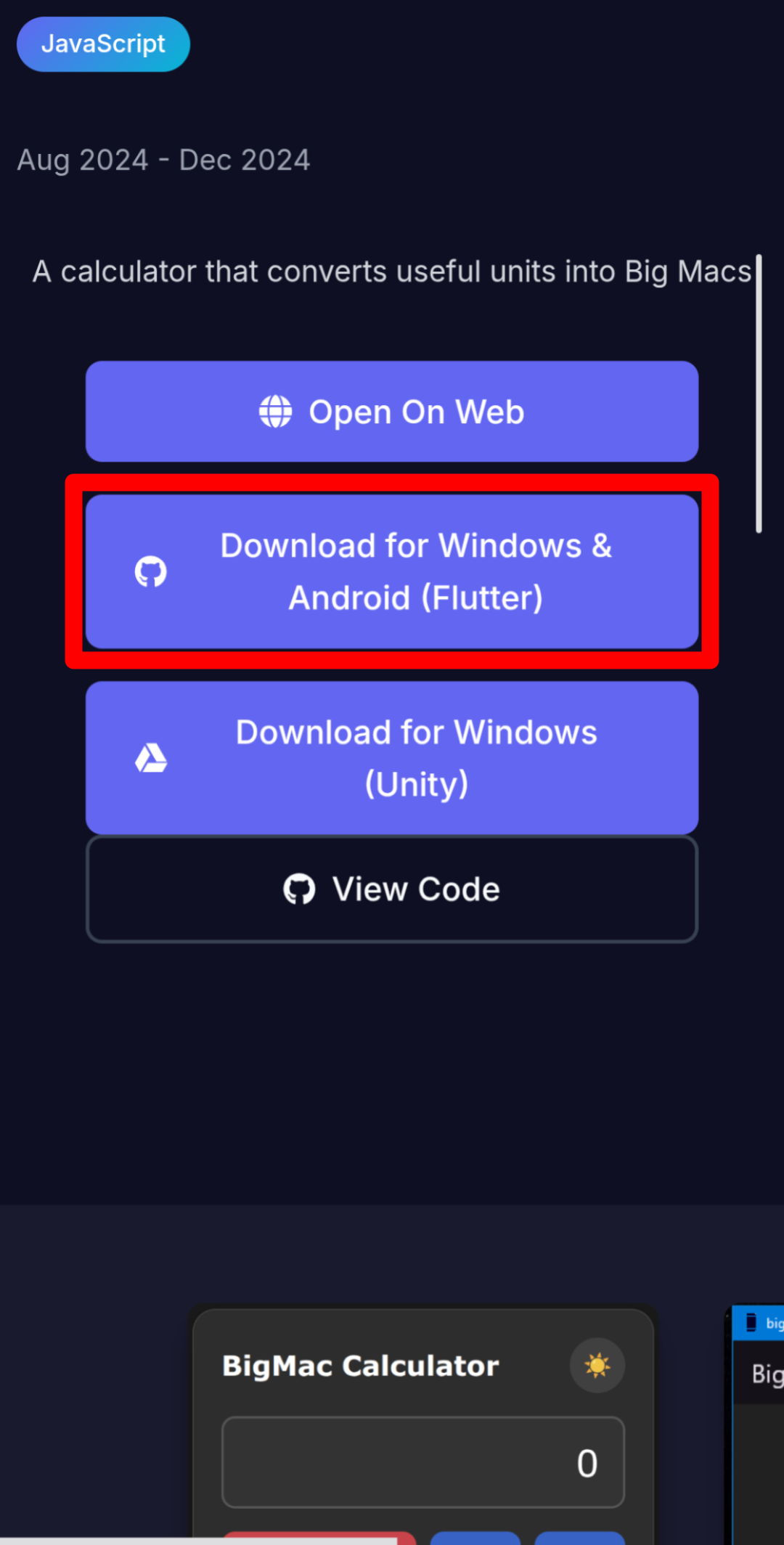
Step 2: Tap download link
Tap the download link for the Android version of the app. This will open the GitHub releases page.
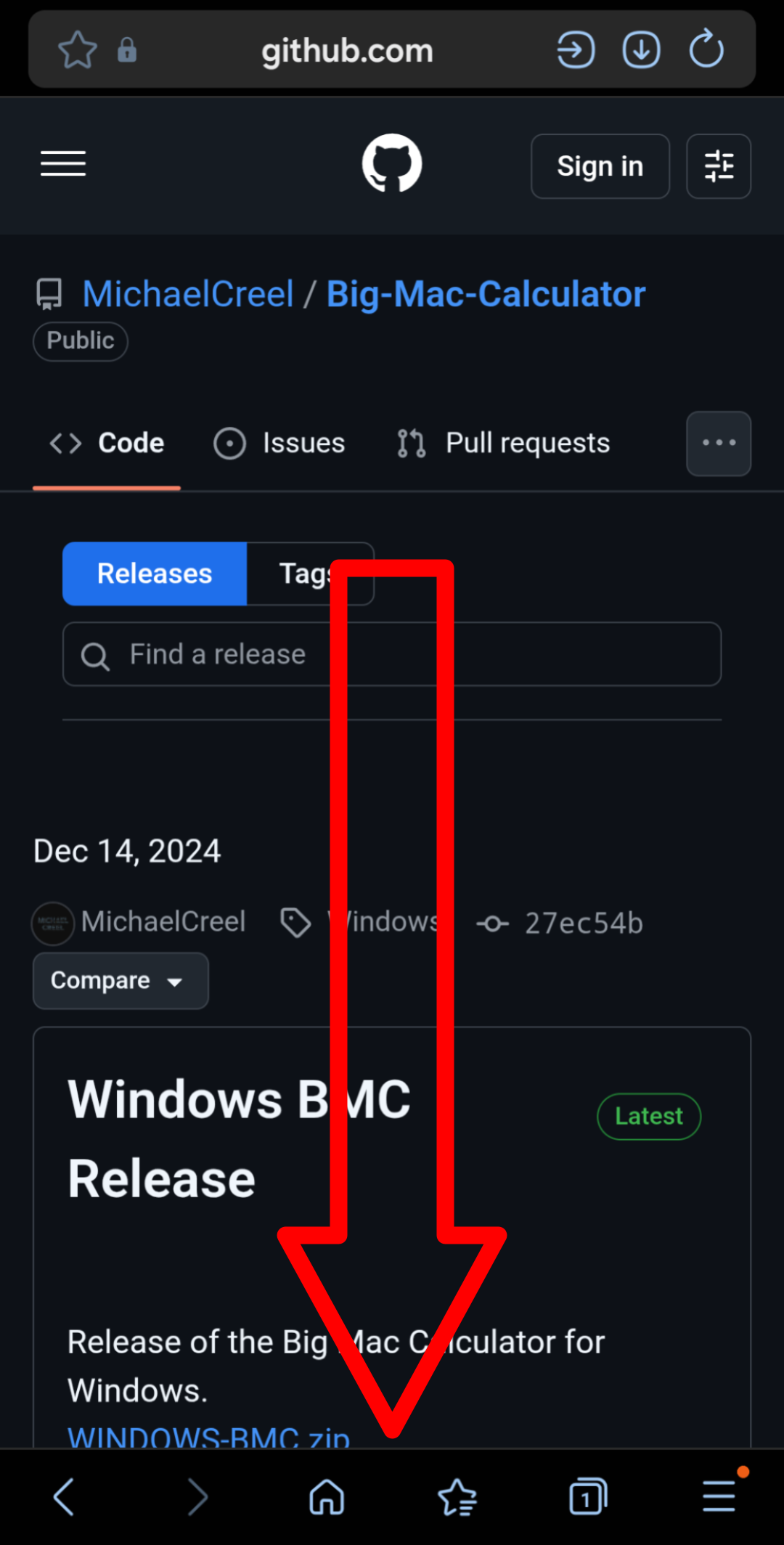
Step 3: Scroll down
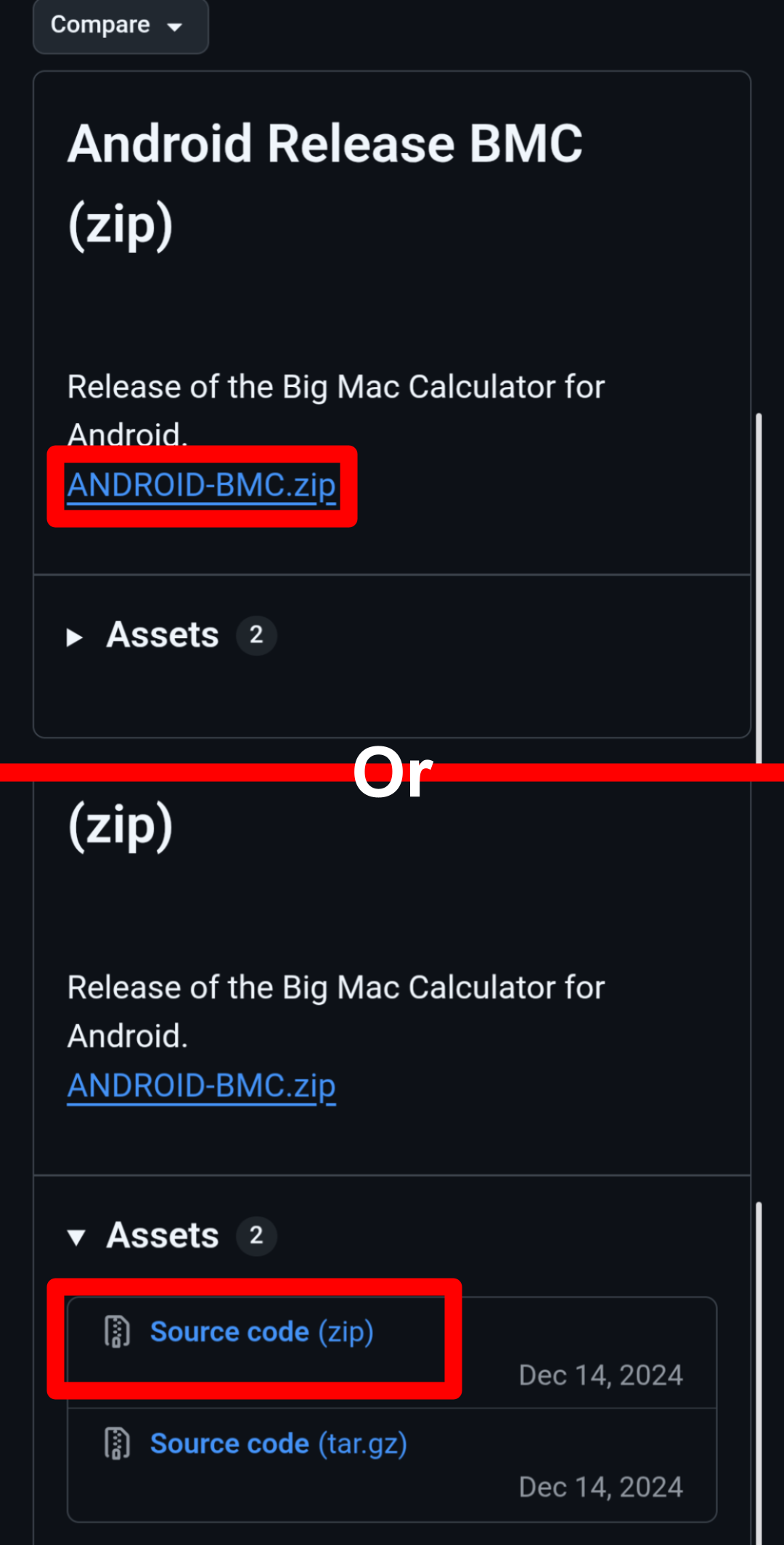
Scroll down to find the latest release for Android.
Step 4: Find the .zip file
Tap the .zip file for Android. This will be found in either the text or the 'Assets' section.
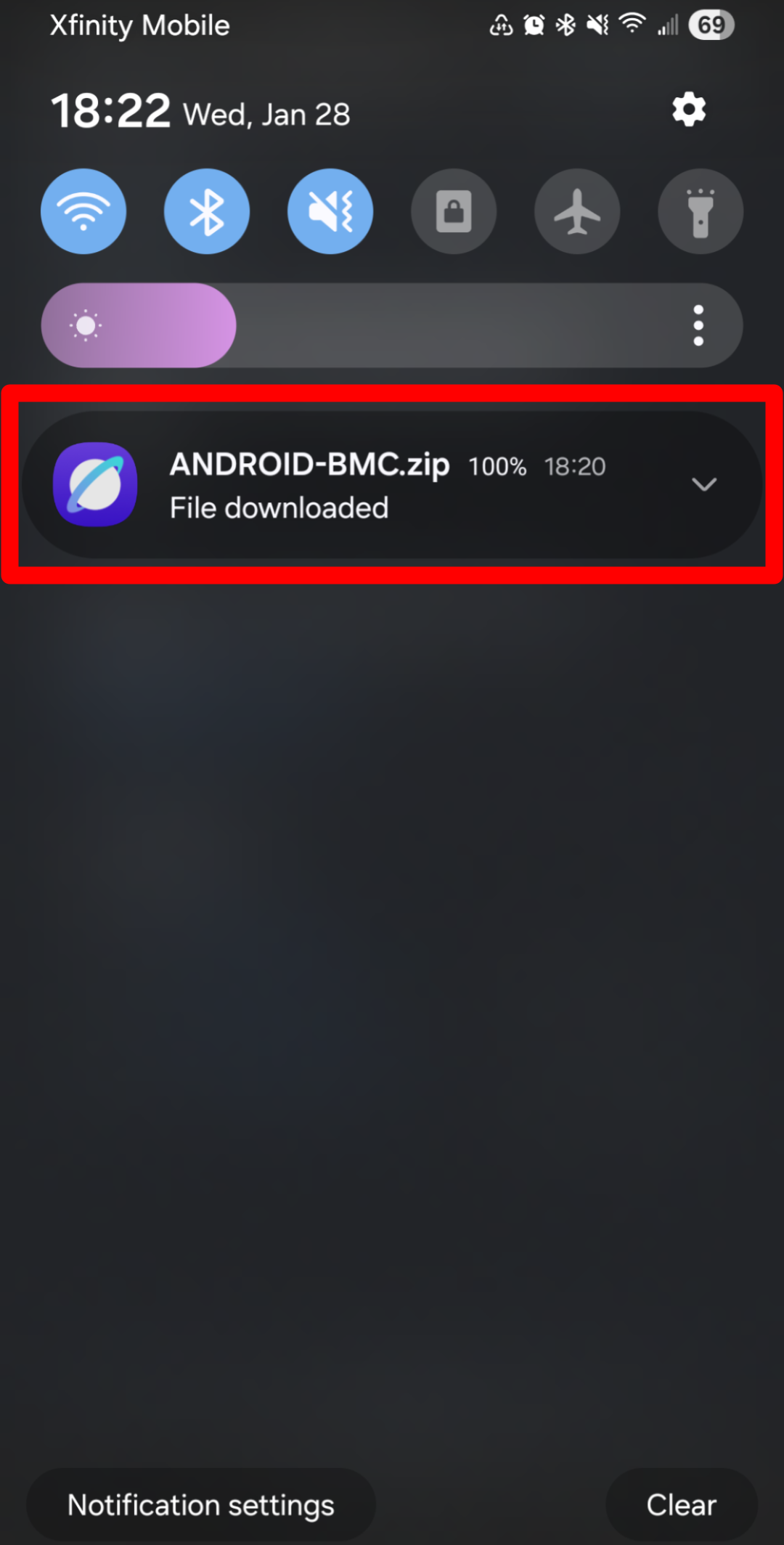
Step 5: Wait patiently
Wait for the file to download. A download notification may appear in your notification bar.
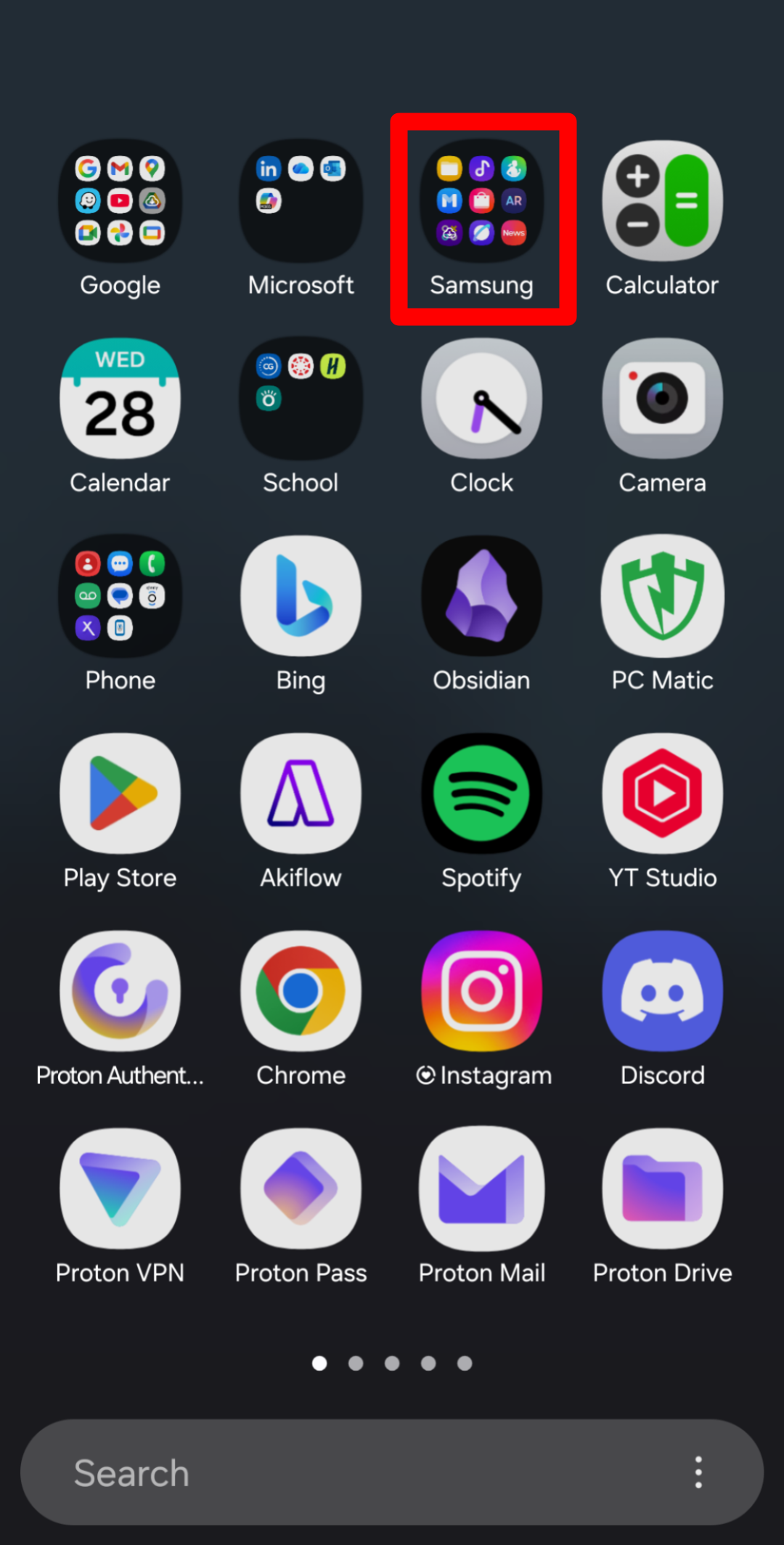
Step 6: Find your files app
Locate your files app. This will likely be called 'Files' or 'My Files'.
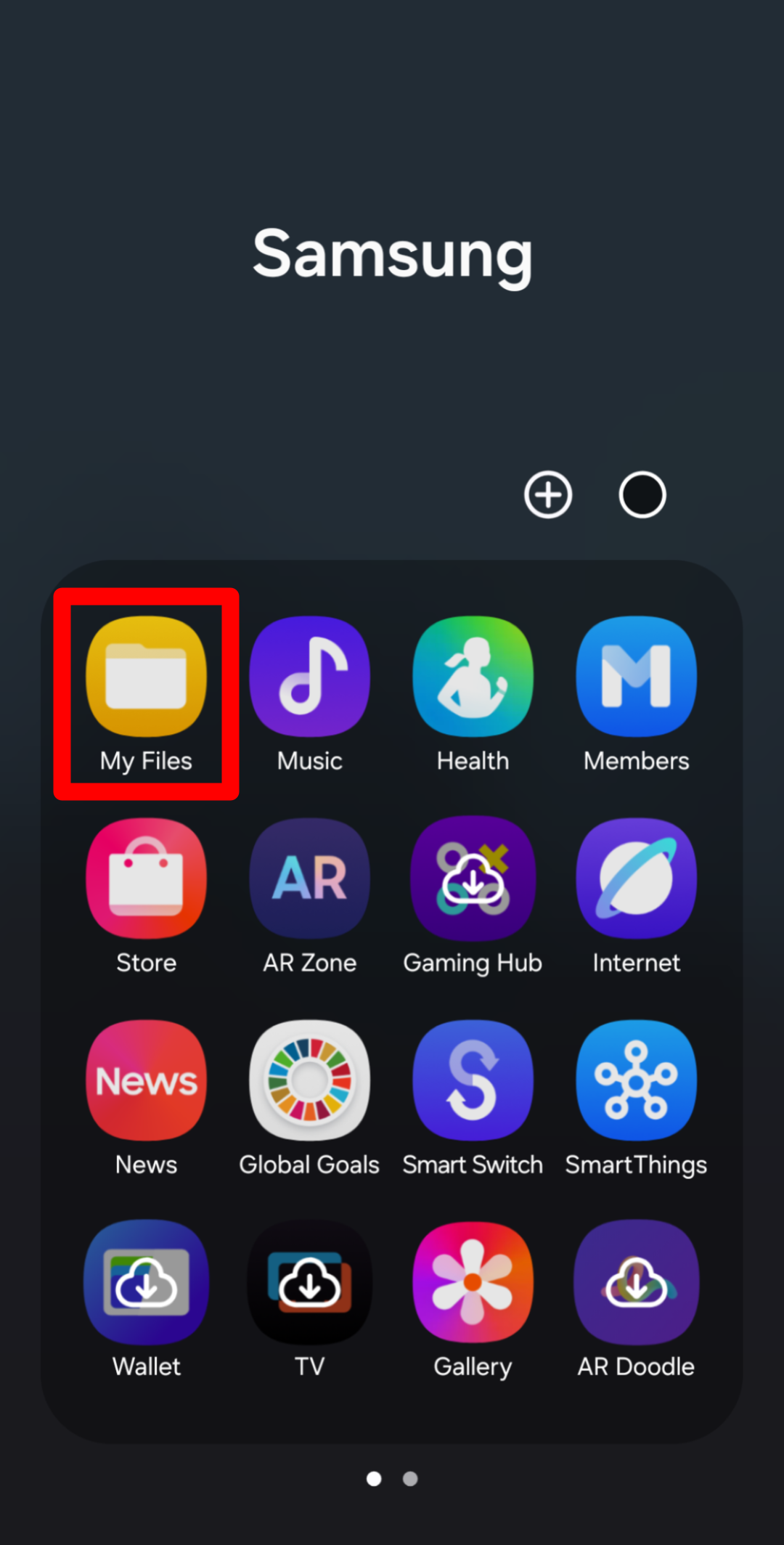
Step 7: Open your files app
Open the files app.
Step 8: Open downloads
Open the 'Downloads' section of your files app. This is where the downloaded file should be located. If the download is not there, you can also check 'Recent' or 'Recent Files'.
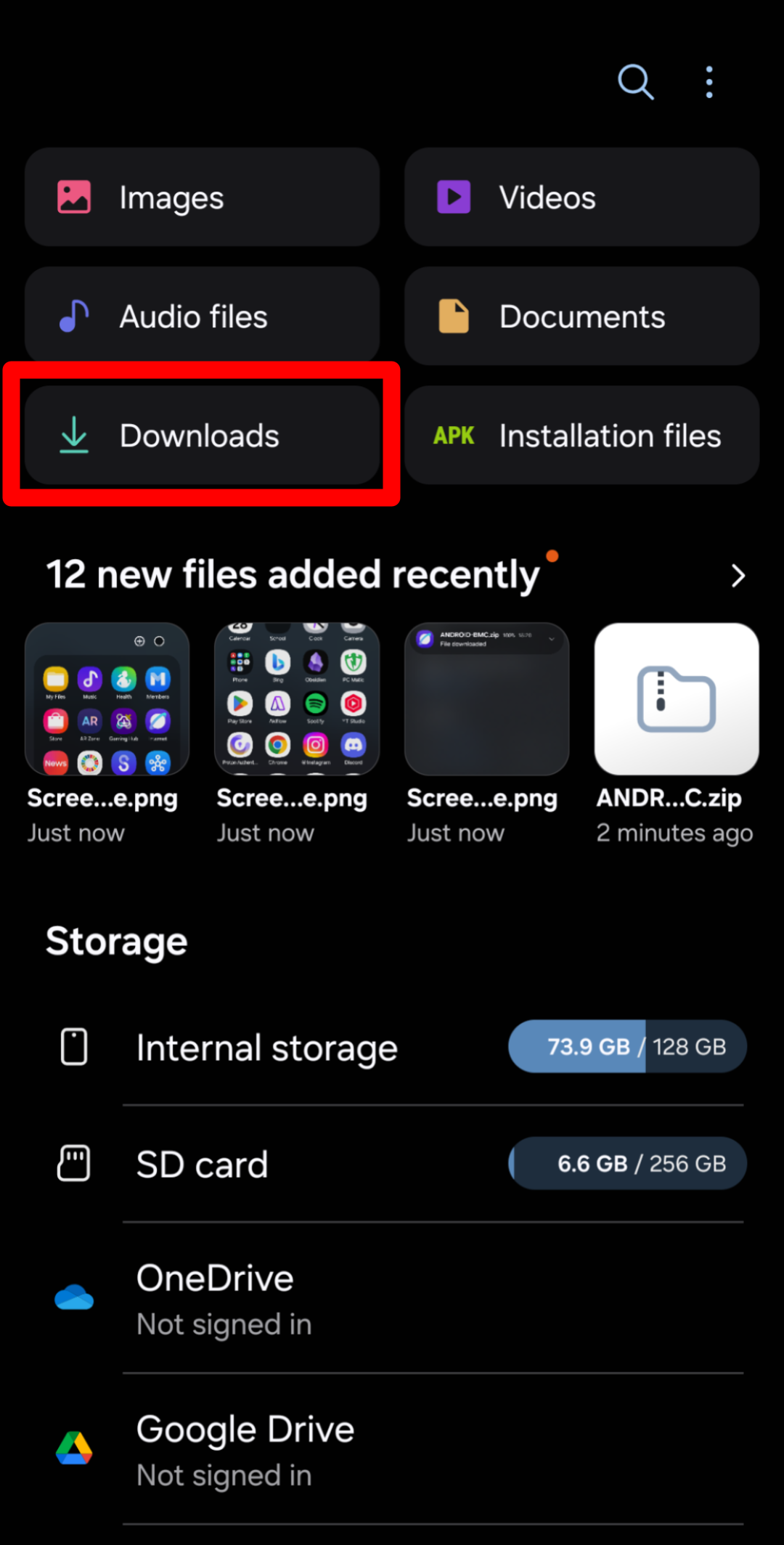
Step 9: Open the file
Tap on the downloaded .zip file to open it.
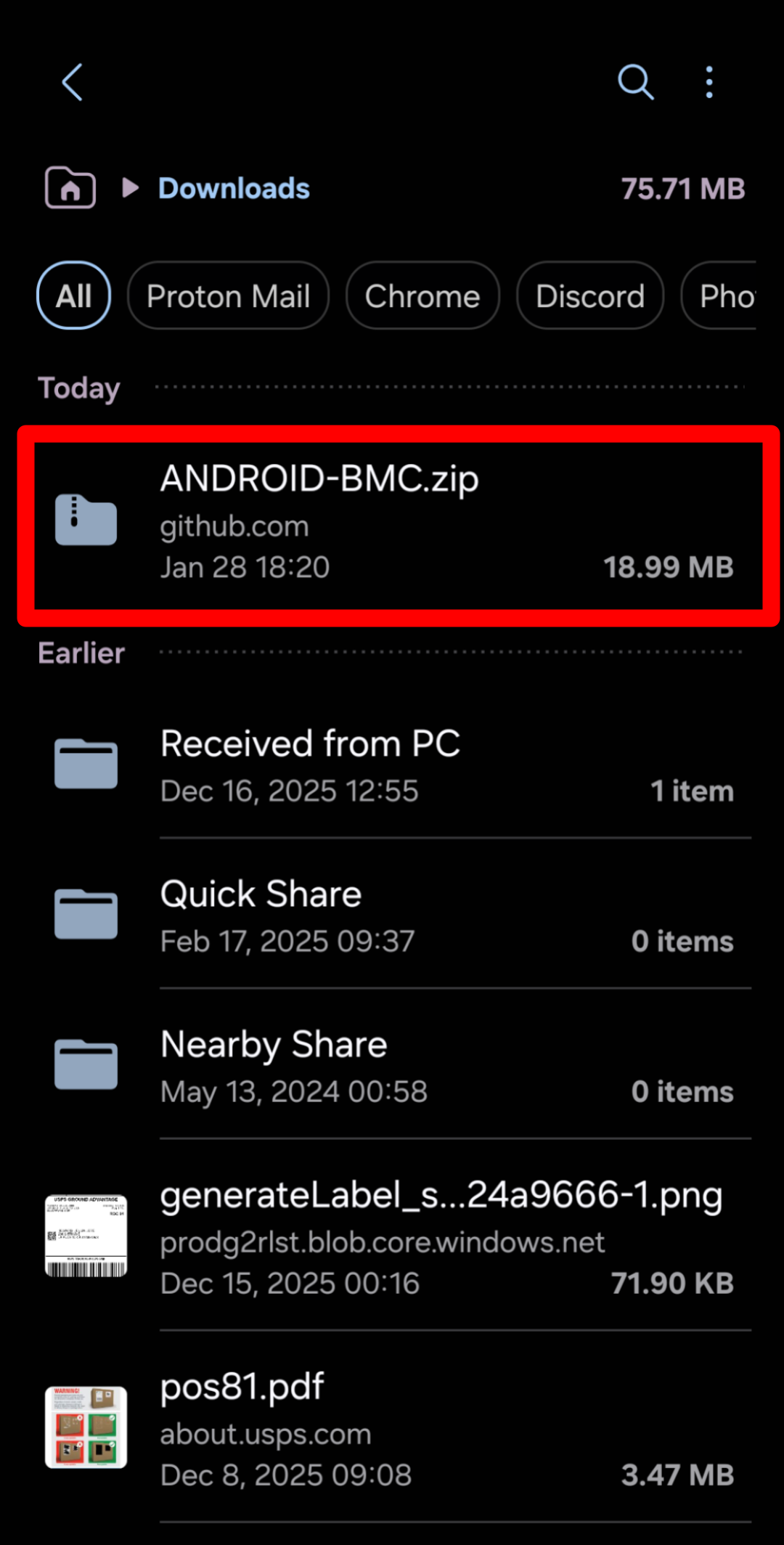
Step 10: Extract the files
Extract the files from the .zip file. This may require an external unzipping app if your device does not support it.
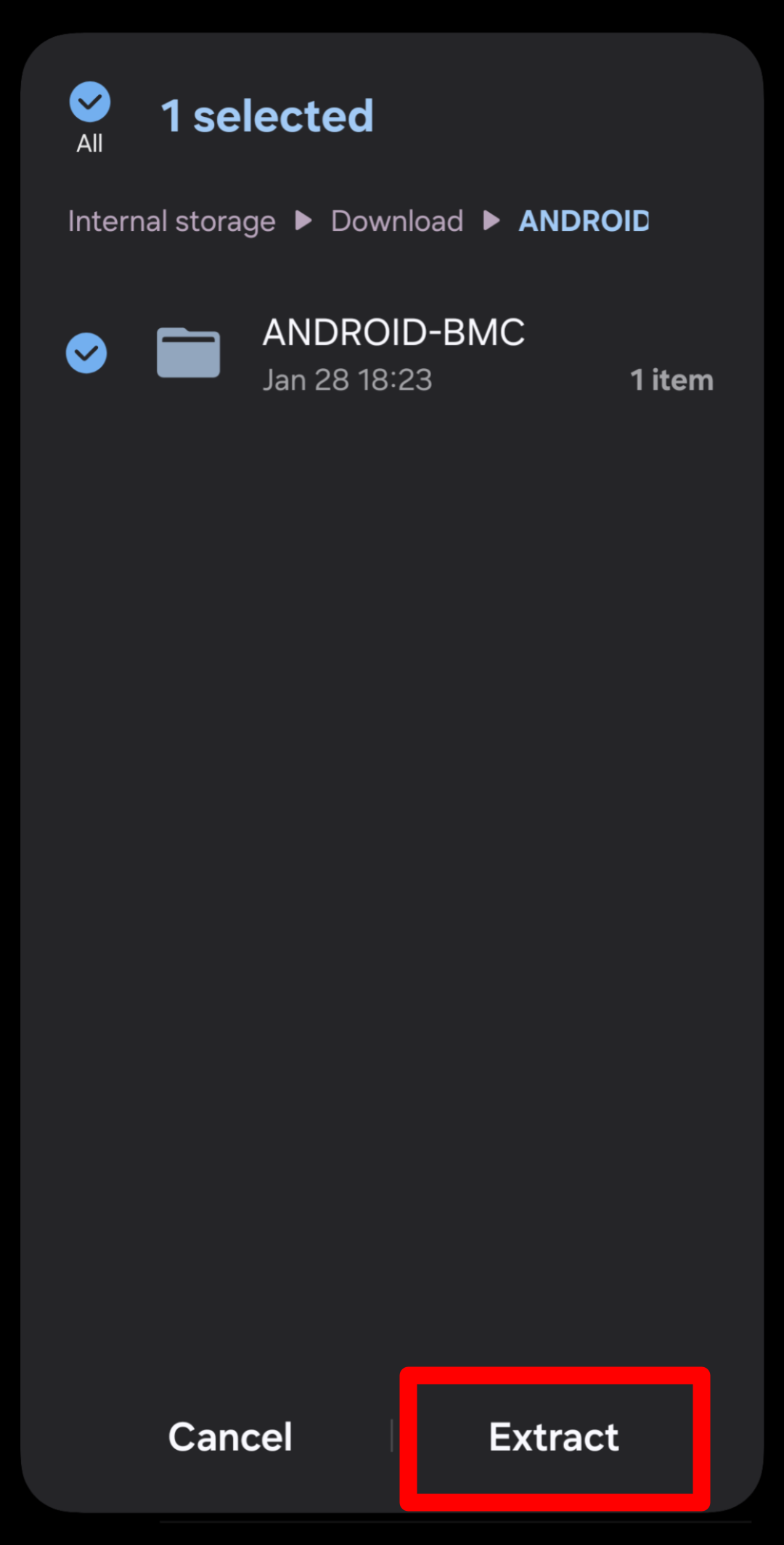
Step 11: Continue extracting
Continue to extract the files. The name of the extracted folder does not matter.
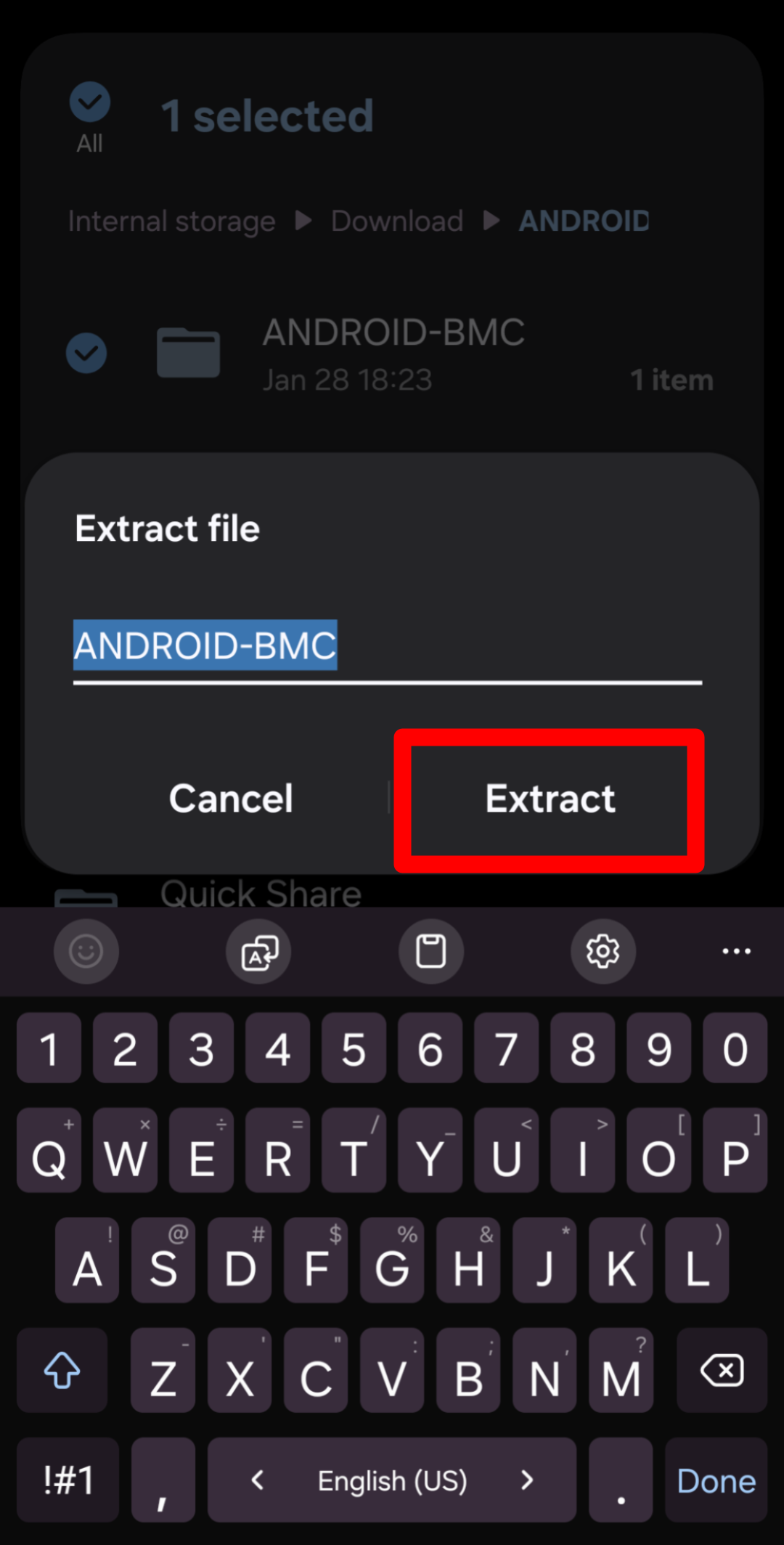
Step 12: Open the folder
Open the extracted folder by tapping on it.
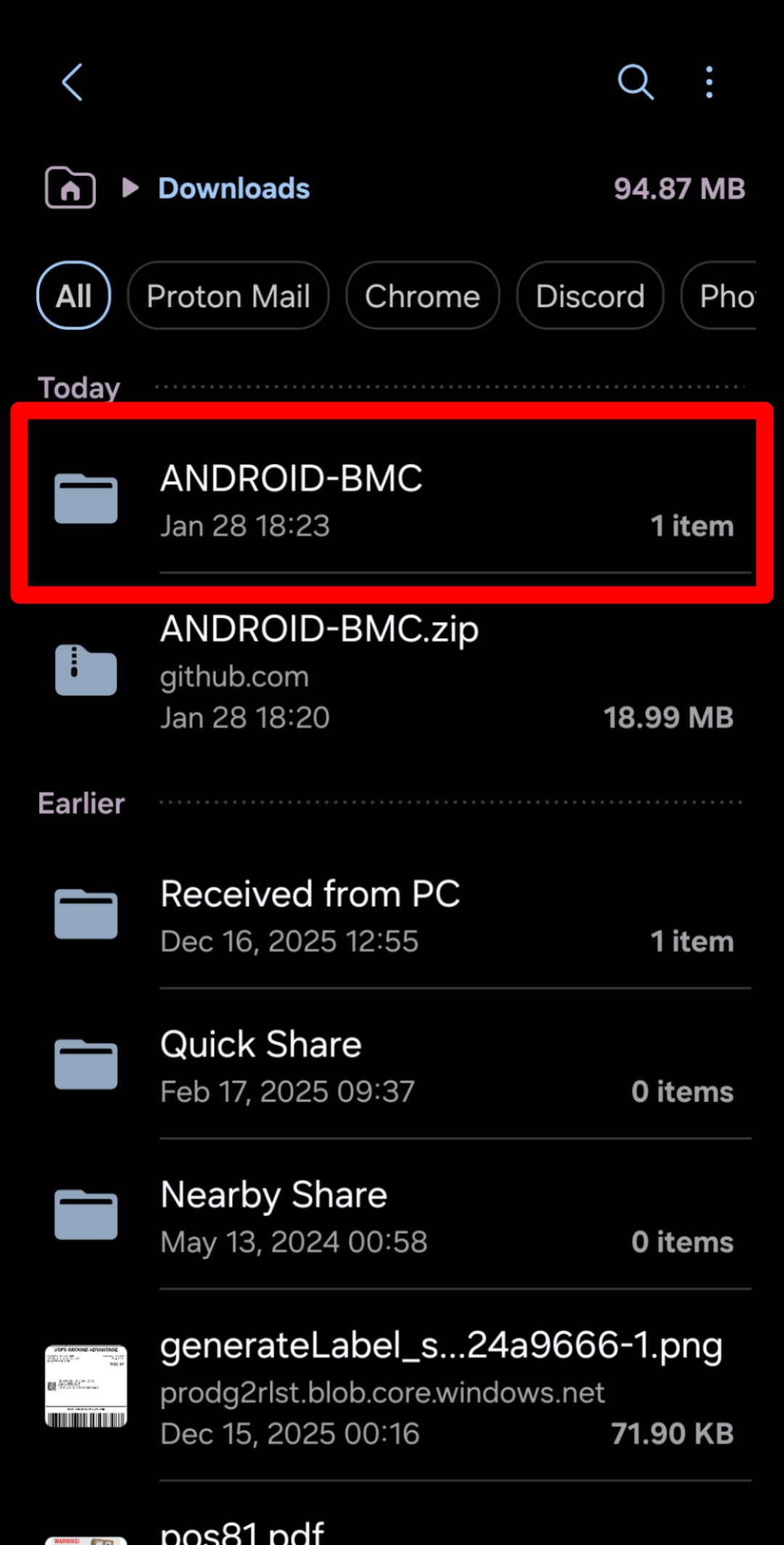
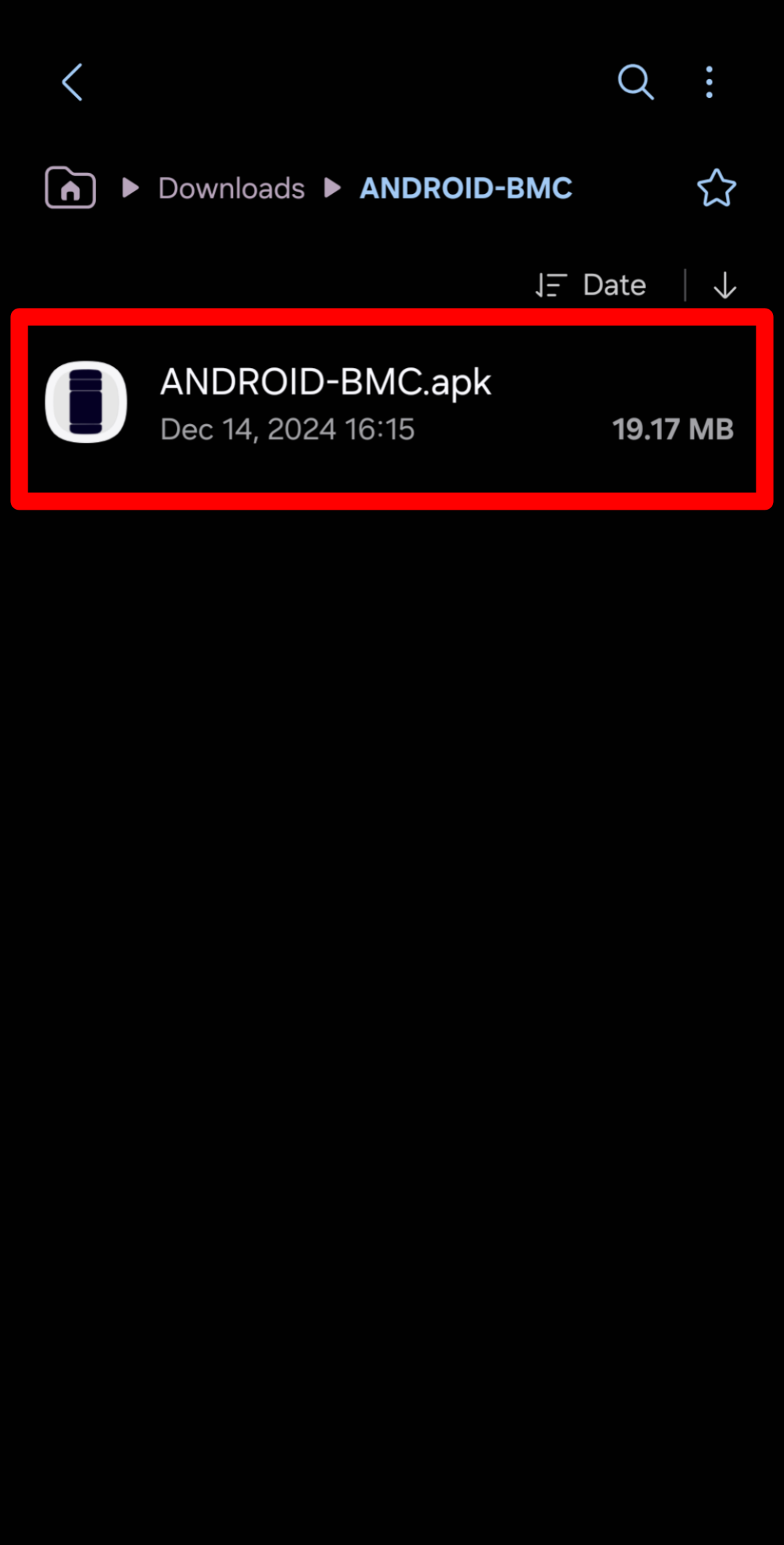
Step 13: Open the package
Tap on the .apk file to open the package installer.
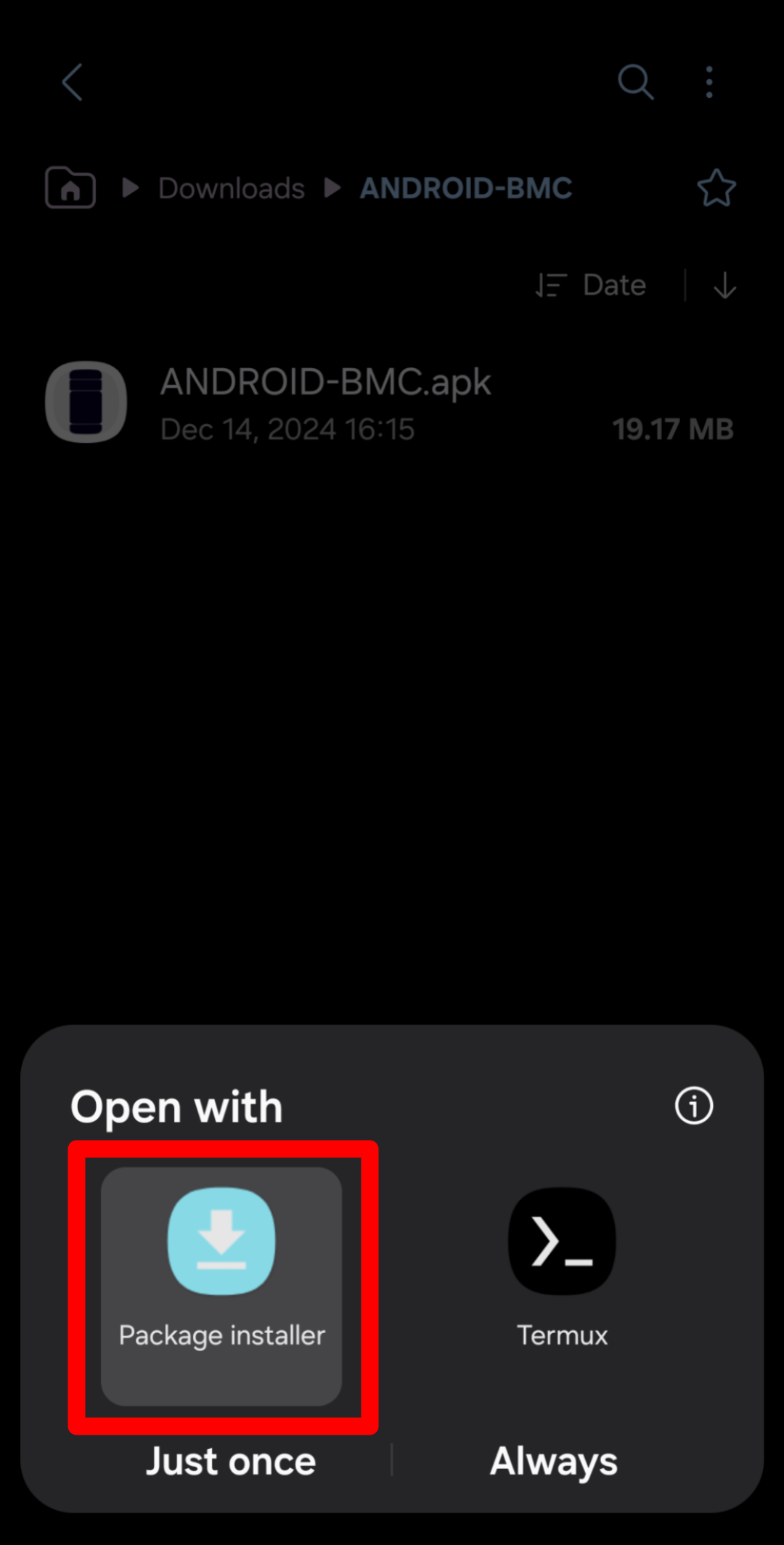
Step 14: Choose an installer
If prompted, pick a package installer.
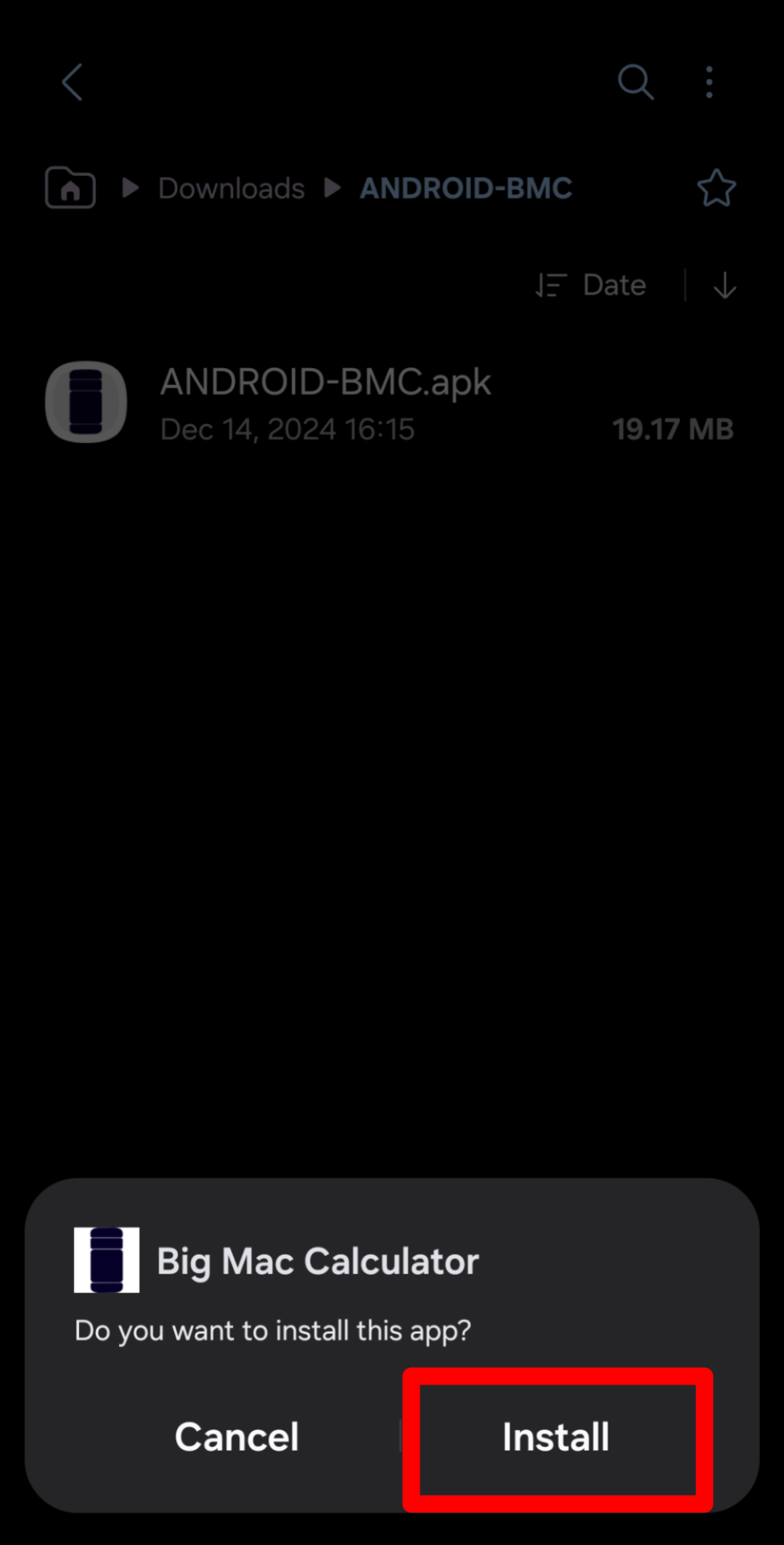
Step 15: Install the app
Install the app by tapping 'Install'.
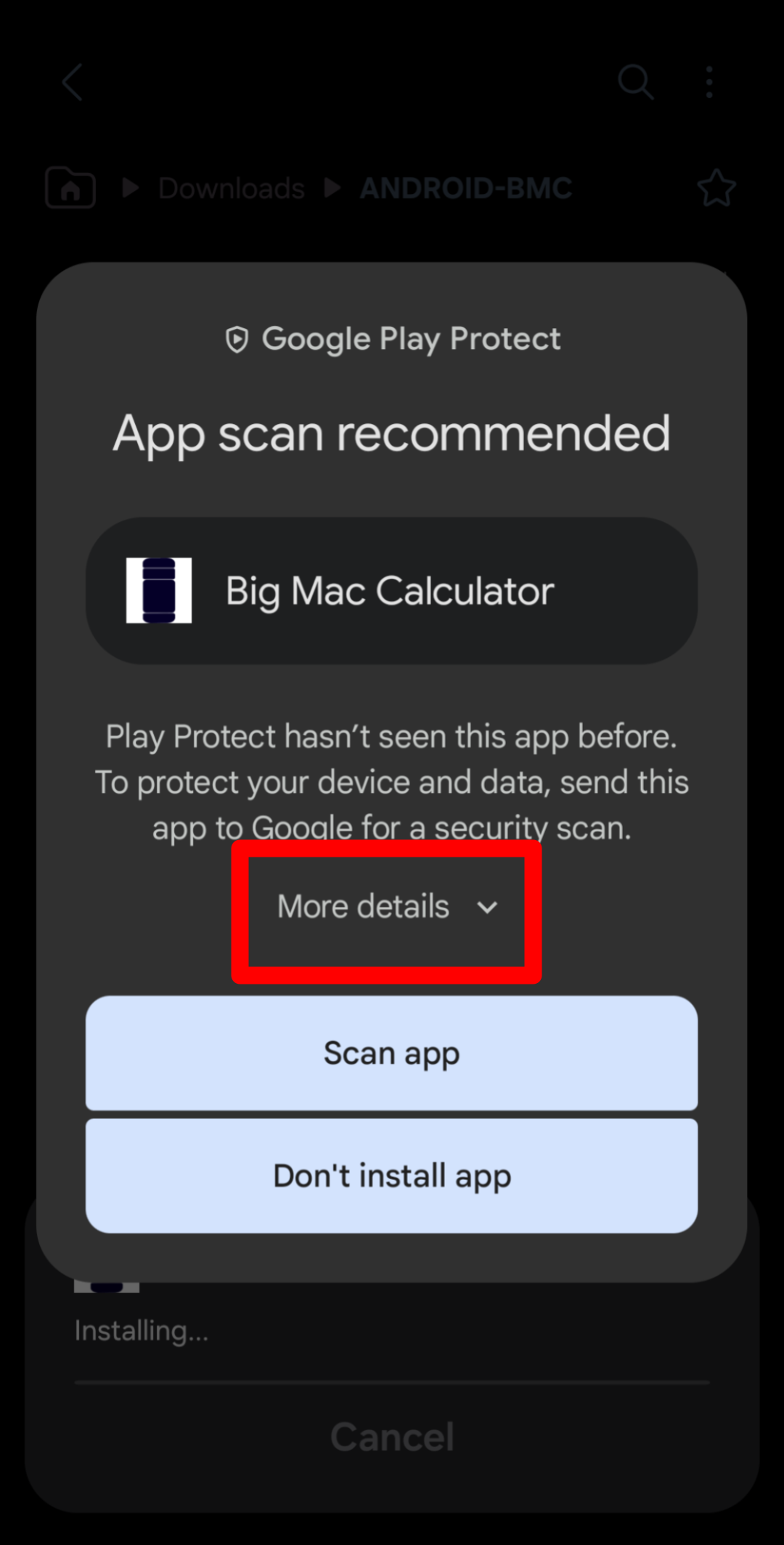
Step 16: Open more details
Tap 'More details' to avoid scanning the app.
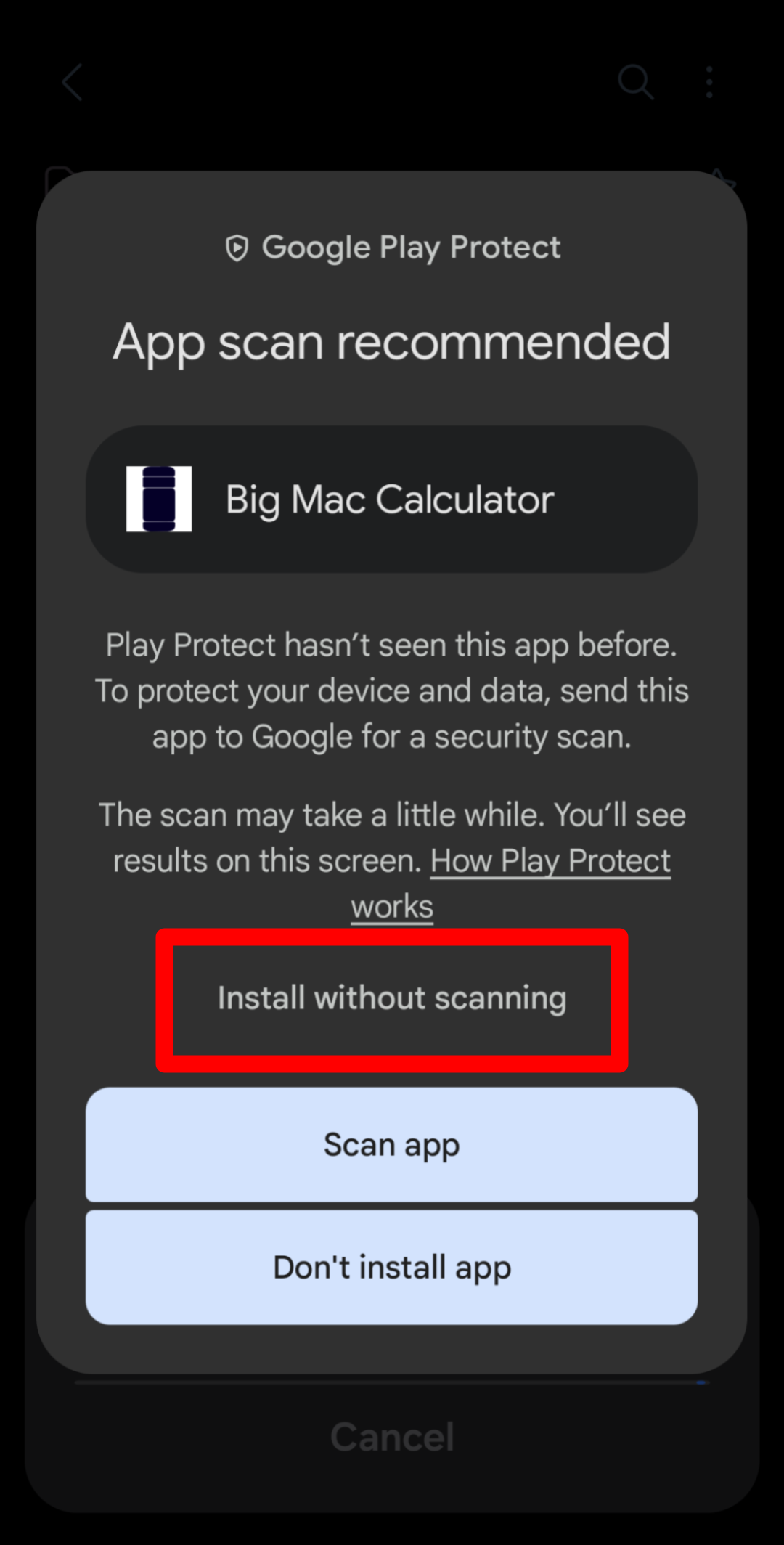
Step 17: Install the app
Tap 'Install without scanning' to install the app.
Note: Scanning the app is meant for security, but it may increase download time.
I do not recommend this for most apps, but
I do not include malicious content in my apps, so scanning is unnecessary.
Step 18: Find newly installed app
The app is now installed. Find the app in your app drawer to open.